Microsoft 365 Personal
Individual plan
macOS 14, 15, 26

English
SubscriptionFor personal use
FOR HOMEDownload
Direct English installers where available
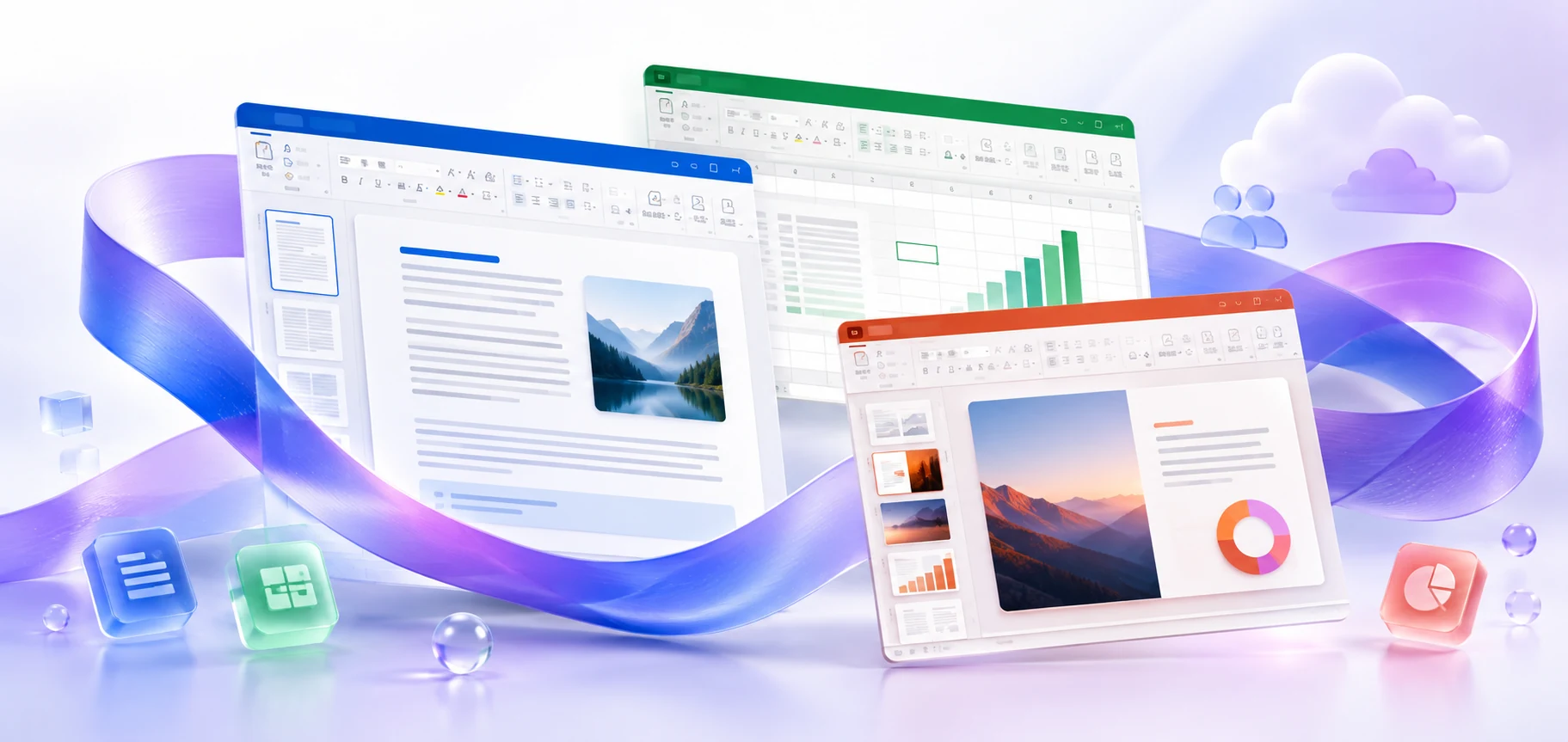
Microsoft 365 on macOS: system requirements, the difference between installation and updates, signing in with a subscription and checking apps on Mac.
VERSIONS AND ACCESS
Individual plan
Family plan
Business plans
Plans for organizations
Apps and web access for Mac
COMPATIBILITY
Exact requirements depend on the app, platform, plan and organization policy.
FEATURES
Word, Excel, PowerPoint, OneNote and OneDrive are available through the Mac App Store. Editing in Word, Excel and PowerPoint from that store requires an eligible subscription; OneNote and OneDrive are available without one.
AutoSave and version history for OneDrive and SharePoint files. Work with the current shared copy of a document and, when necessary, return to a previous version saved in its history.
The subscription provides access to current application features for Mac. Updates add tools while the subscription is active; specific features may arrive on Mac and Windows at different times.
Edit a OneDrive or SharePoint document with colleagues in supported apps. Comments and visible changes help you review material in a single copy.
Work with locally saved files in the installed Word, Excel, and PowerPoint. A connection is needed for subscription verification, updates, and synchronization of cloud changes.
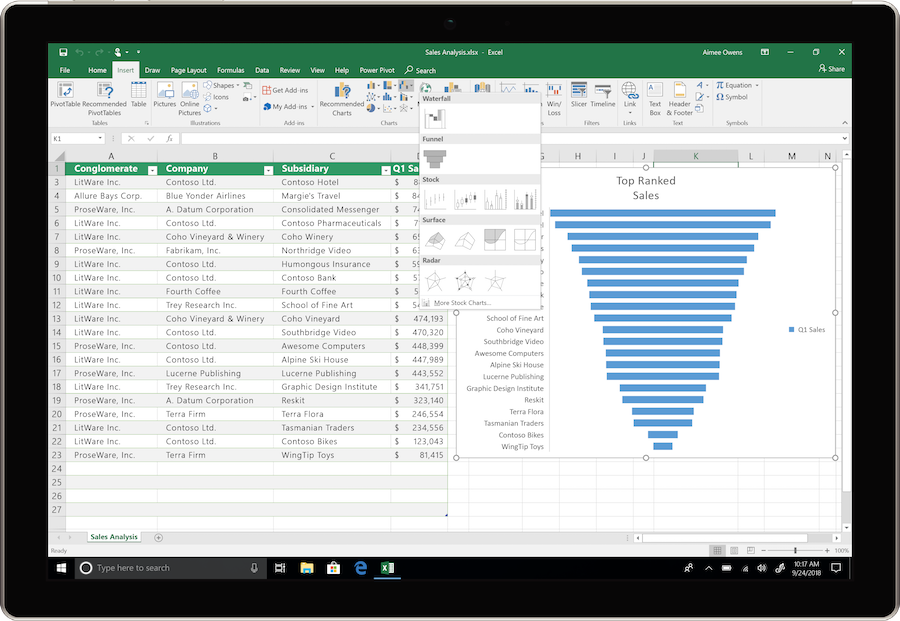
Import and transform data in Excel using saved steps. Available connections and editor features differ between Windows and macOS.
Use licensed AI features when preparing documents and presentations. Support depends on the plan, app version, language and organization settings.
Record repeated actions and edit VBA in desktop Excel. Macros that depend on Windows components may need adapting before they can run on Mac.
A new Mac needs an installation package. A standalone update assumes that the application is already installed.
Check package compatibility against the current support policy for Office for Mac and your system version.
HELP CENTER
Enabled downloads lead directly to verified installer files. — Use an enabled Download button for Mac to retrieve the matching English installer directly from the official publisher. Check the selected product and license before installation. Account, store and guide pages are not offered as downloads.
Access and activation are determined by Microsoft and your existing entitlement. — Use the Microsoft account, work or school account, subscription or perpetual license that covers the selected product and edition. Downloading an installer or opening a guide does not grant a license.
Choose the language through the official installation or app settings. — Choose English in the available installer or application settings. Display and proofing languages can be configured separately. Language settings for an existing licensed installation do not establish that a new installer download is available.
Use the installation path for your actual device and license. — Check the official system requirements, platform, edition and architecture before installation. On Windows, confirm compatibility with existing Office apps and add-ins. Windows installation media cannot be installed on macOS or mobile devices.
Back up your documents and confirm the release’s requirements and support status. — Check Microsoft’s current requirements and lifecycle information for the exact release. A working download link does not establish support or compatibility.