Microsoft 365 Enterprise
Plans for organizations
Windows 11

macOS 14, 15, 26

One of the four latest major Android versions

English
OrganizationManagement and security
CORPORATIONDownload
Direct English installers where available
Install Microsoft 365 in an organization: entitlement to Microsoft 365 Apps, license assignment, work accounts and shared computer considerations.
VERSIONS AND ACCESS
Plans for organizations
COMPATIBILITY
Exact requirements depend on the app, platform, plan and organization policy.
FEATURES
Plans for organizations that need advanced management and compliance features. Administrators assign licenses and configure service access to align the work environment with organizational policies.
E3 includes basic Purview features, while E5 includes advanced features. The tools help classify and protect business information; available policies and capabilities are determined by assigned licenses.
Access to Copilot features is determined by the license and selected enterprise plan. This allows AI to be integrated into workflows according to corporate access rights and the capabilities available to the organization.
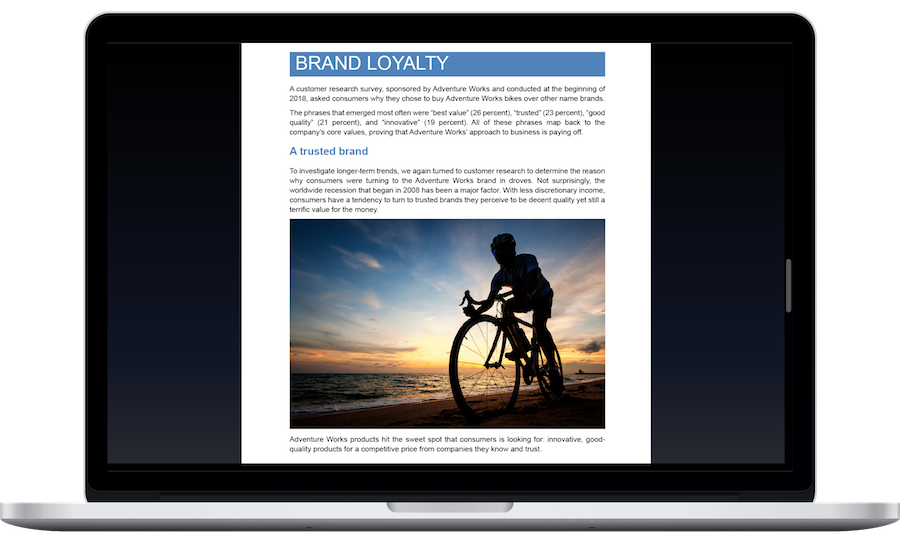
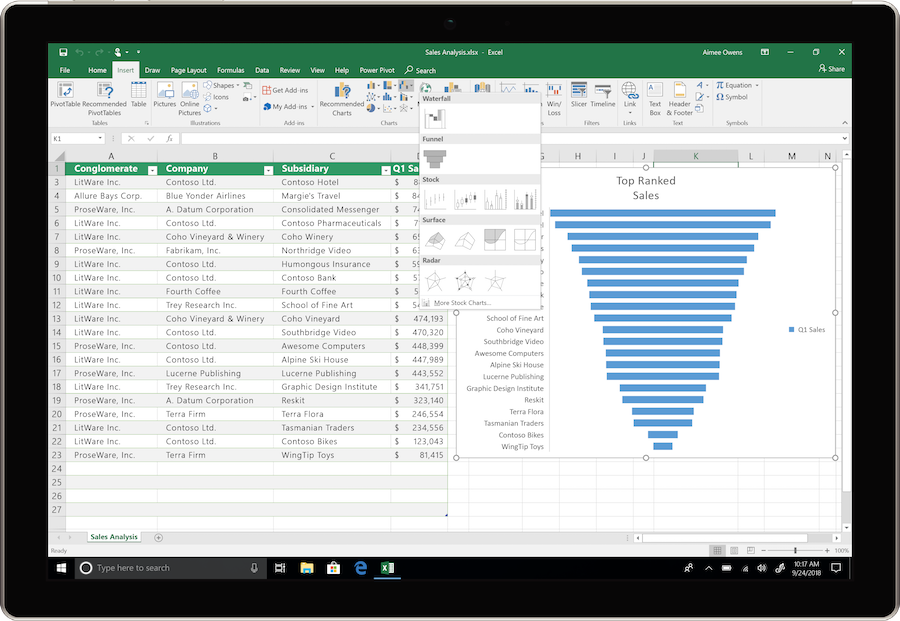
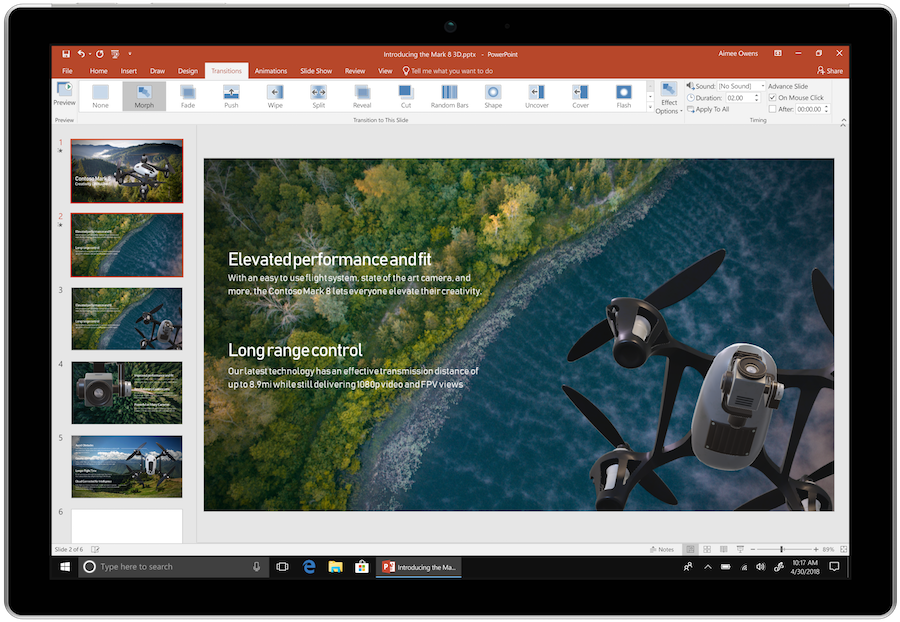
Microsoft 365 E3 and E5 include desktop applications for documents, spreadsheets, and presentations. The administrator assigns licenses and manages deployment.
Organize employees' mailboxes and calendars in the enterprise service. Retention policies and protection settings are configured according to the license and organizational requirements.
SharePoint and OneDrive provide employees with space for shared materials. Permission management helps restrict document access to the appropriate teams.
Apply policies to work devices and apps, and control access to organizational data. Available management tools depend on the plan and assigned licenses.
Manage corporate accounts and access to services. Identity tools help align employee sign-in with the organization's security policies.
Microsoft 365 E3 and E5 plans include rights to Windows enterprise capabilities when licensing conditions are met. This helps combine management of the work environment and applications.
Shared computer activation is a separate mode with its own licensing and configuration requirements.
HELP CENTER
Enabled downloads lead directly to verified installer files. — Use an enabled Download button for Mac, Windows to retrieve the matching English installer directly from the official publisher. Check the selected product and license before installation. Account, store and guide pages are not offered as downloads.
Access and activation are determined by Microsoft and your existing entitlement. — Use the Microsoft account, work or school account, subscription or perpetual license that covers the selected product and edition. Downloading an installer or opening a guide does not grant a license.
Shared PCs require separate configuration. — In an organization, this depends on the plan, user licenses, and shared computer configuration. Agree on the mode with your administrator before a mass installation.
Use the installation path for your actual device and license. — Check the official system requirements, platform, edition and architecture before installation. On Windows, confirm compatibility with existing Office apps and add-ins. Windows installation media cannot be installed on macOS or mobile devices.
Back up your documents and confirm the release’s requirements and support status. — Check Microsoft’s current requirements and lifecycle information for the exact release. A working download link does not establish support or compatibility.